
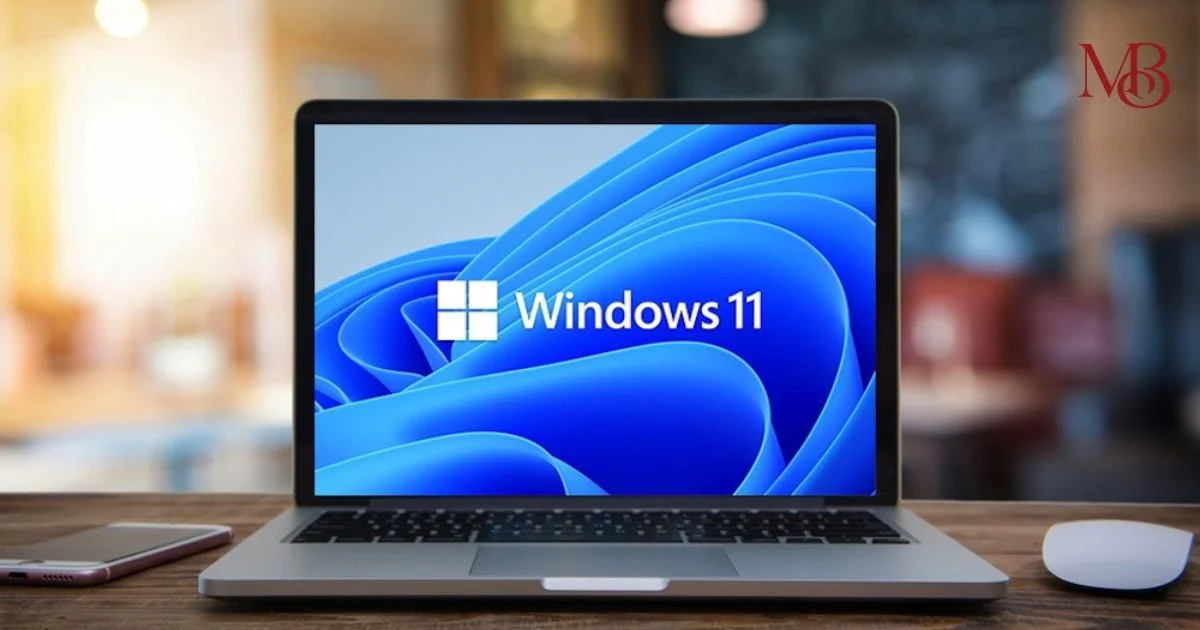
For years, Mac users had to choose between staying inside Apple’s ecosystem or switching to a Windows PC whenever they needed access to certain applications. Whether it was a business tool, engineering software, a Windows-only game, or a workplace application, the compatibility gap between macOS and Windows often created frustration.
But things have changed.
In 2026, running Windows 11 on a Mac is easier than ever. Modern virtualization software has made it possible to use Windows applications alongside macOS without carrying two separate computers.
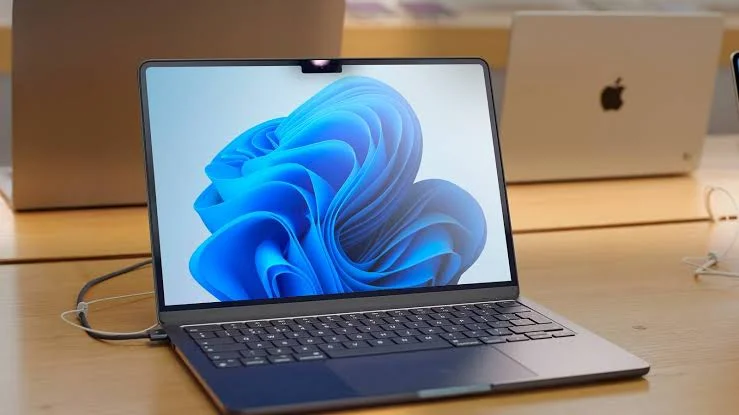
Imagine working on your MacBook, switching between Safari and your favourite Mac apps, and then opening a Windows-only application in another window without restarting your device. That flexibility is now a reality for millions of Mac users.The biggest reason behind this shift is the rise of virtualisation tools like Parallels Desktop, which allow Windows 11 to run inside macOS as a virtual machine.
Run Windows 11 on Your Mac Easily
Parallels Desktop makes it simple to install and use Windows alongside macOS without restarting your Mac. New users can currently save up to 35% with the available promotional offer.
Try Parallels Desktop with 35% off: Click here
Whether you own an Intel-based Mac or a newer Apple Silicon Mac powered by an M-series chip, there are solutions available. The right choice depends on what you want to do with Windows casual apps, professional software, development work, gaming, or business use. In this guide, we will explain:
- How to run Windows 11 on a Mac
- The different methods available in 2026
- Why Parallels Desktop has become a popular choice
- How to install Windows step by step
- Performance requirements
- Common problems and solutions
- Whether running Windows on a Mac is worth it
Why Do People Want Windows on a Mac?
Apple computers are known for their design, security, performance, and smooth user experience. However, some situations still require Windows. Here are some common reasons Mac users install Windows 11:
1. Access to Windows-Only Software
Many professional applications are still designed primarily for Windows. Examples include:
- Enterprise management software
- Accounting applications
- Engineering tools
- Industry-specific programs
- Government and corporate applications
For professionals who rely on these programs, having Windows available on a Mac can be extremely useful.
2. Microsoft Office and Business Workflows
Although Microsoft Office works well on macOS, some organizations use Windows-specific features, plugins, or enterprise systems that perform better on Windows. Employees may need Windows for:
- Advanced Excel features
- Corporate applications
- Internal company tools
- Testing environments
3. Gaming
While gaming on Mac has improved, Windows remains the dominant platform for PC gaming. Many popular games are built around:
- DirectX technology
- Windows-specific launchers
- Anti-cheat systems
Running Windows can give Mac users access to a wider gaming library.
4. Students and Developers
Students and developers often need different operating systems for learning and testing. Examples:
- Coding environments
- Software development tools
- Database applications
- Programming courses
Having both macOS and Windows available on one machine can make workflows much easier.
Can Every Mac Run Windows 11?
The answer depends on your Mac’s processor. Apple has moved from Intel processors to its own Apple Silicon chips, including M1, M2, M3, and M4 series. The experience is different depending on your hardware.
| Mac Type | Windows 11 Support | Recommended Method |
|---|---|---|
| Intel Mac | Yes | Parallels Desktop or Boot Camp |
| M1 Mac | Yes | Parallels Desktop |
| M2 Mac | Yes | Parallels Desktop |
| M3 Mac | Yes | Parallels Desktop |
| M4 Mac | Yes | Parallels Desktop |
Intel Macs
Older Intel-based Macs have more options because they support traditional Windows installation methods. Users can choose between:
- Virtual machines
- Dual boot solutions like Boot Camp
Boot Camp allows users to install Windows directly on a separate partition and choose between macOS and Windows when starting the computer.
Apple Silicon Macs
Macs powered by Apple’s M-series chips work differently. Boot Camp is not available on:
- M1 Macs
- M2 Macs
- M3 Macs
- M4 Macs
Instead, virtualization has become the preferred method. This is where applications like Parallels Desktop have become especially important.
The Best Ways to Run Windows 11 on a Mac in 2026
There are several methods available, but each one serves a different type of user.
Method 1: Parallels Desktop – The Simplest Option for Most Users
Parallels Desktop is one of the most popular ways to run Windows on Mac because it focuses on simplicity. Instead of restarting your Mac, Windows runs inside macOS like another application. You can:
- Open Windows apps beside Mac apps
- Copy and paste between systems
- Share files easily
- Connect USB devices
- Switch between operating systems instantly
For most everyday users, professionals, and students, this is the easiest solution.
Advantages of Parallels Desktop
Easy installation
The setup process is designed for users who do not have technical knowledge.
Works with Apple Silicon Macs
It supports modern Mac computers powered by M-series chips.
Smooth integration
Features like Coherence Mode allow Windows applications to appear alongside Mac applications.
Good performance
Because modern Macs have powerful processors, Windows can run smoothly for many everyday tasks.
Method 2: VMware Fusion
VMware Fusion is another virtualization option for Mac users. It has been popular among developers and IT professionals because of its advanced features.
Advantages:
- Strong virtualization capabilities
- Good developer support
- Professional features
However, beginners may find it less straightforward compared with Parallels Desktop.
Method 3: UTM
UTM is an open-source virtualization solution. It is attractive for advanced users who want:
- More control
- Custom configurations
- Experimental setups
However, it usually requires more technical knowledge and may not provide the same smooth experience as commercial options.
Method 4: Boot Camp (Intel Macs Only)
Boot Camp allows Intel Mac users to install Windows directly on their computer. Unlike virtualization, Windows runs directly on the hardware.
Advantages:
- Maximum performance
- Better for demanding applications
- Useful for gaming
Limitations:
- Not available on Apple Silicon Macs
- Requires restarting the computer to switch systems
How to Run Windows 11 on a Mac in 2026: The Complete Step-by-Step Guide
While several options exist for running Windows on a Mac, Parallels Desktop has become one of the most widely used solutions because it focuses on making the process simple for everyday users.
Many people do not want to deal with complicated virtual machine settings, technical configurations, or restarting their computer every time they need Windows. They simply want Windows applications to work smoothly on their Mac.
That is where Parallels Desktop fits in. Here are some reasons why Mac users often prefer it:
1. Seamless Windows and macOS Integration
One of the biggest advantages of Parallels Desktop is that Windows does not feel like a separate computer. With features like Coherence Mode, users can open Windows applications directly alongside Mac applications.
For example:
- Safari can run beside Microsoft Excel
- Apple Notes can sit beside Windows productivity apps
- Mac folders can be accessed from Windows
- Files can be moved between both systems
This makes the experience feel more natural compared with traditional dual-boot setups.
2. Easy Windows 11 Installation
Installing Windows used to feel like a complicated technical process. Modern virtualisation software has simplified the experience. With Parallels Desktop, users can typically:
- Download and install the software
- Follow the setup instructions
- Install Windows 11
- Start using Windows applications
Even users with limited technical knowledge can complete the process without advanced computer skills.
3. Works Well With Apple Silicon Macs
Apple’s transition from Intel processors to its own chips changed how Windows works on Macs.
The latest Mac computers use:
- M1 chips
- M2 chips
- M3 chips
- M4 chips
These computers cannot use Boot Camp, making virtualization the preferred solution. Parallels Desktop supports Windows 11 on Apple Silicon Macs through virtualization technology designed for ARM-based systems.
4. Useful Features for Professionals
For professionals who regularly switch between macOS and Windows, Parallels Desktop offers several productivity features. These include:
- Shared clipboard
- File sharing between operating systems
- Multiple display support
- USB device support
- Snapshot options
- Custom performance settings
For developers, designers, business users, and students, these features can save significant time.
How to Install Windows 11 on a Mac Using Parallels Desktop
The exact steps may vary slightly depending on your Mac model and software version, but the general process is straightforward.
Step 1: Check Your Mac Requirements
Before installing Windows, make sure your Mac has enough resources. Recommended:
- macOS updated to the latest version
- At least 8GB RAM (16GB recommended)
- Minimum 100GB free storage
- Stable internet connection
For demanding tasks like gaming, video editing, or professional applications, more RAM and storage will provide a better experience.
Step 2: Install Parallels Desktop
Download and install Parallels Desktop on your Mac.
After installation:
- Open the application
- Sign in or create an account
- Follow the setup instructions
The software will guide you through creating a virtual machine.
Step 3: Download Windows 11
Parallels Desktop can help users download Windows 11 during the setup process. The installation process generally includes:
- Selecting Windows installation
- Downloading the required files
- Creating the virtual machine
- Installing Windows
Step 4: Complete Windows Setup
After Windows starts for the first time:
- Sign in with your Microsoft account
- Install updates
- Configure preferences
- Install required applications
At this stage, your Mac will have both macOS and Windows available.
Step 5: Customize Performance Settings
After installation, you can adjust how much of your Mac’s resources Windows uses.
You can configure:
- RAM allocation
- Processor cores
- Storage space
- Graphics settings
The ideal settings depend on your usage.
How Much RAM and Storage Does Windows Need on a Mac?
Running two operating systems requires planning because Windows uses part of your Mac’s available resources.
Here is a general guide:
| Usage | Recommended RAM | Storage |
|---|---|---|
| Browsing and Office apps | 8GB | 80–100GB |
| Students and professionals | 16GB | 120GB+ |
| Programming and development | 16–32GB | 150GB+ |
| Gaming and creative work | 32GB+ | 200GB+ |
If your Mac has limited storage, remember that the Windows installation, applications, updates, and files will continue to consume space over time.
Tips to Improve Windows Performance on Mac
Even powerful Macs benefit from proper optimization.
Keep macOS Updated
Apple regularly improves performance, security, and compatibility through system updates.
Avoid Giving Windows Too Many Resources
A common mistake is allocating too much RAM or processing power to Windows.
Your Mac still needs resources to run macOS.
A balanced setup usually provides a smoother experience.
Use SSD Storage
Windows virtual machines perform best when stored on fast SSD storage.
Modern Mac computers already use high-speed SSDs, which helps improve performance.
Close Unnecessary Applications
Before running demanding Windows software:
- Close unused Mac applications
- Free up memory
- Keep background processes limited
Can You Play Windows Games on a Mac Using Parallels?
Gaming is one of the biggest reasons people consider installing Windows. The reality is mixed. Windows on Mac can work well for:
- Older games
- Indie games
- Less demanding titles
- Casual gaming
However, performance depends on:
- The game requirements
- Your Mac hardware
- Graphics compatibility
- Anti-cheat support
Some major PC games may still perform better on a dedicated Windows gaming PC. For professional applications, office work, development, and productivity tasks, virtualization usually delivers a much better experience.
Common Problems When Running Windows on Mac (And Solutions)
Even with modern tools, users may occasionally face issues.
Problem 1: Windows Feels Slow
Possible solutions:
- Increase allocated RAM
- Close background apps
- Free up storage
- Update Parallels Desktop
Problem 2: Not Enough Storage Space
Windows installations can become large over time.
Solutions:
- Remove unused applications
- Delete old files
- Increase virtual machine storage if needed
- Store large files externally
Problem 3: USB Devices Not Working
If a USB device is not detected:
- Check Parallels USB settings
- Confirm Windows drivers are installed
- Reconnect the device
Problem 4: Windows Activation Issues
Installing Windows and activating Windows are separate steps.
You may need:
- A valid Windows license key
- Microsoft account verification
Is Parallels Desktop Worth Buying in 2026?
The answer depends on how often you need Windows.
Parallels Desktop Makes Sense For:
Professionals
If your workplace depends on Windows software, having Windows available on your Mac can improve productivity.
Students
Students who need specific Windows applications can avoid purchasing a separate laptop.
Developers
Developers often need multiple environments for testing applications.
Business Users
Companies can use virtual machines for flexibility, security testing, and software compatibility.
It May Not Be Necessary For:
- Users who never need Windows applications
- People with very basic computing needs
- Users who already own a Windows PC
Final Thoughts: Is Running Windows on Mac Still Worth It?
In 2026, the relationship between Mac and Windows is no longer about choosing one over the other. Modern virtualisation has made it possible to enjoy the strengths of both platforms. macOS continues to offer Apple’s smooth ecosystem, security, and performance, while Windows provides access to software and applications that may not be available on Mac.
For most users who need Windows occasionally, a virtualization solution like Parallels Desktop provides the easiest and most convenient experience. Whether you are a student, professional, developer, or business user, running Windows 11 on a Mac can give you the flexibility of two operating systems on one device.
Also Read: AI Took Our Jobs… Then Asked Us “Humans” to Fix Its Mistakes (AI layoffs: The Reality)
Frequently Asked Questions (FAQs)
1. Can I run Windows 11 on an M1, M2, M3, or M4 Mac?
Yes. Apple Silicon Macs can run Windows 11 through virtualization software such as Parallels Desktop.
2. Is Boot Camp available on Apple Silicon Macs?
No. Boot Camp is only available on Intel-based Macs.
3. Do I need to buy Windows separately?
Yes. While installation methods may help you set up Windows, you generally need a valid Windows license for activation.
4. Is Parallels Desktop good for gaming?
It can handle some games, but performance depends on the game, Mac hardware, and compatibility requirements.
5. Can I remove Windows from my Mac later?
Yes. A Windows virtual machine can be deleted from your Mac if you no longer need it.
6. Does running Windows slow down my Mac?
Windows uses part of your Mac’s resources while running. With enough RAM and storage, most modern Macs can handle everyday Windows tasks smoothly.
7. Which is better: Parallels Desktop or Boot Camp?
For Intel Macs, Boot Camp may offer better performance. For Apple Silicon Macs, Parallels Desktop is the practical choice because Boot Camp is unavailable.
Affiliate Disclosure: This article may contain affiliate links. If you purchase a product through these links, MediaBirdMag may earn a commission at no additional cost to you.