
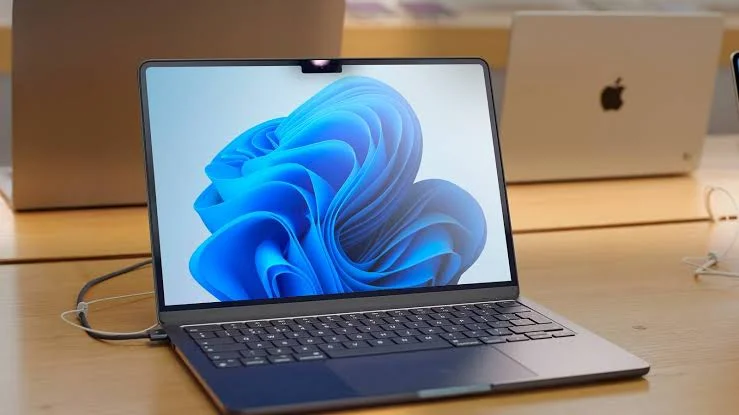
Parallels Desktop Review: Apple’s Mac lineup has evolved dramatically over the past few years. With the introduction of Apple Silicon chips like the M1, M2, M3, and now M4, Macs have become faster, more efficient, and better suited for demanding workloads. However, one challenge remains unchanged: many professionals, students, and businesses still rely on Windows-exclusive applications. Whether it’s specialised engineering software, enterprise tools, accounting programs, or simply a Windows-only application for work, many Mac users eventually ask the same question:
How can I run Windows without giving up macOS? That’s where Parallels Desktop enters the picture.
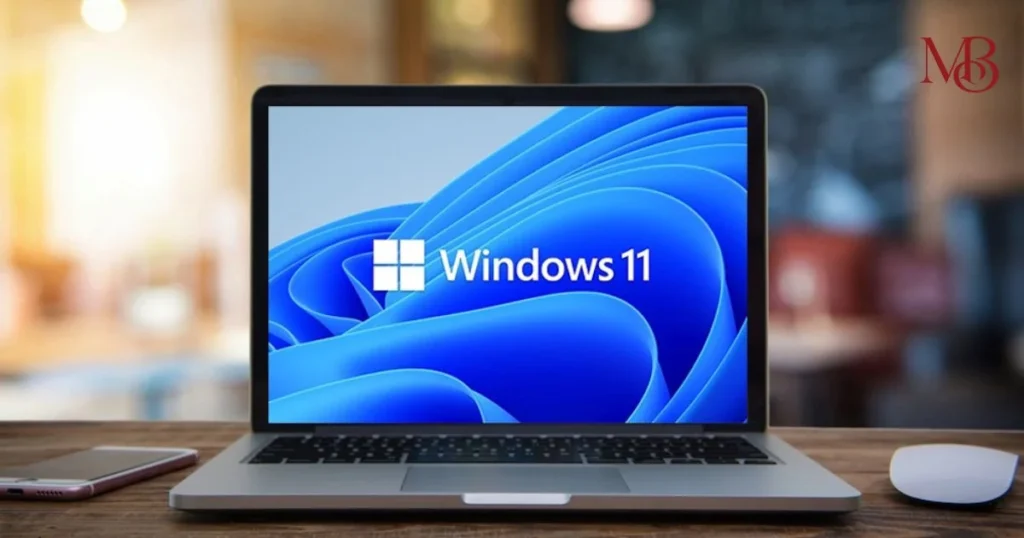
For years, Parallels Desktop has been one of the most popular virtualisation solutions for Mac. Instead of forcing you to reboot your computer every time you need Windows, it allows you to run Windows 11 alongside macOS in a virtual machine. But in 2026, with alternatives like VMware Fusion and UTM available, is Parallels Desktop still worth paying for? In this review, we’ll take an objective look at its features, ease of use, performance, pricing, pros and cons, and who should consider buying it.
What Is Parallels Desktop?
Parallels Desktop is virtualization software designed for macOS. It lets you install and run Windows—and even other operating systems—inside macOS without rebooting your Mac.
In practical terms, it means you can:
- Open Microsoft Excel for Windows while Safari is running.
- Use Windows-only business software without leaving macOS.
- Test applications across different operating systems.
- Copy and paste text between Windows and Mac.
- Drag and drop files between both operating systems.
Unlike dual-boot solutions, Windows runs as an application within macOS, making it much easier to switch between tasks.
It supports both Intel-based Macs and Apple Silicon models, making it one of the few mainstream solutions suitable for today’s Mac ecosystem.
Parallels Desktop 26 – Run Windows apps on your Mac
Key Features of Parallels Desktop
1. Windows 11 Support
One of Parallels Desktop’s biggest strengths is its compatibility with Windows 11. The software streamlines the installation process, making it much simpler than setting up a virtual machine manually.
For many users, Windows installation can be completed in under an hour, depending on internet speed and system configuration.
2. Apple Silicon Compatibility
When Apple transitioned away from Intel processors, many users worried about Windows compatibility.
Parallels Desktop adapted quickly and now supports Windows on Macs powered by:
- M1
- M2
- M3
- M4
This makes it a practical choice for users with newer MacBook Air, MacBook Pro, iMac, Mac mini, and Mac Studio models.
3. Coherence Mode
One standout feature is Coherence Mode.
Instead of viewing Windows inside a traditional desktop window, Coherence Mode lets Windows applications appear directly on your Mac desktop.
This creates a more seamless workflow, especially if you’re frequently switching between macOS and Windows applications.
4. Shared Clipboard
Copy text from macOS.
Paste it into Windows.
Or do the reverse.
It sounds simple, but if you regularly work across both operating systems, this feature quickly becomes indispensable.
5. Drag-and-Drop File Sharing
Moving files between operating systems is straightforward.
You can drag a document from your Mac desktop into a Windows folder or copy files back to macOS without relying on external drives or cloud storage.
6. USB Device Support
Need to connect:
- USB drives
- Printers
- External hard drives
- Smart card readers
Parallels Desktop lets you decide whether connected devices should be used by macOS or Windows.
7. Snapshot Support
Snapshots let you save the current state of your Windows virtual machine.
If something goes wrong after installing software or changing settings, you can restore a previous snapshot instead of reinstalling Windows from scratch.
This feature is particularly useful for developers and IT professionals.
8. Retina Display Optimization
Windows scales well on modern Retina displays, making text and graphics appear crisp instead of blurry.
Installation Experience
One of the reasons Parallels Desktop remains popular is its beginner-friendly installation process.
After downloading the software, the setup wizard guides you through creating a virtual machine and installing Windows.
You don’t need advanced technical knowledge, and the interface explains each step clearly.
Installation Rating
| Category | Rating |
|---|---|
| Ease of Installation | ⭐⭐⭐⭐⭐ |
| Beginner Friendly | ⭐⭐⭐⭐⭐ |
| Setup Speed | ⭐⭐⭐⭐☆ |
| Documentation | ⭐⭐⭐⭐⭐ |
For first-time users, this simplicity is a major advantage over more technical virtualization tools.
User Interface and Ease of Use
The interface is clean and intuitive.
Most settings are organized logically, making it easy to:
- Allocate RAM and storage
- Manage virtual machines
- Adjust display settings
- Configure shared folders
- Connect external devices
Even users who have never worked with virtual machines before are unlikely to feel overwhelmed.
Performance: How Well Does It Run?
Performance depends on your Mac’s hardware, available RAM, storage, and how many resources you allocate to the virtual machine.
For general productivity, the experience is smooth.
| Task | Performance |
|---|---|
| Web Browsing | Excellent |
| Microsoft Office | Excellent |
| Programming | Excellent |
| Photoshop | Very Good |
| Video Editing | Good |
| Casual Gaming | Good |
| AAA Gaming | Fair |
For office work, software development, education, and business applications, Parallels Desktop delivers a reliable experience.
If your primary goal is playing the latest graphics-intensive games, a dedicated Windows gaming PC is still the better option.
Pros and Cons
Pros
✔ Extremely easy to install and use
✔ Excellent integration with macOS
✔ Supports Apple Silicon Macs
✔ Fast switching between Windows and macOS
✔ Useful productivity features
✔ Reliable updates
✔ Great for professionals and students
Cons
✘ Subscription-based pricing may not suit every budget
✘ Demanding games can have performance limitations
✘ Requires sufficient RAM and storage for optimal performance
✘ Advanced enterprise users may need more customization than casual users
Pricing and Editions
Parallels Desktop is available in three editions:
Standard Edition
Suitable for most home users and students who need Windows applications occasionally.
Pro Edition
Designed for developers, power users, and professionals who require additional resources and advanced virtualization features.
Business Edition
Built for organizations that need centralized management, deployment tools, and enterprise-focused capabilities.
Current Promotional Offer
For new 1-year subscription licenses, Parallels is currently offering:
Global (excluding APAC):
- 35% off Standard, Pro, and Business Editions with coupon code PD35
APAC (Australia, Japan, China, Hong Kong, South Korea):
- 45% off Standard and Pro Editions with coupon code PD45
- 35% off Business Edition with coupon code BIZ35
Offer valid until August 25, 2026, according to the current promotion.
Parallels Desktop vs VMware Fusion
Many users compare Parallels Desktop with VMware Fusion before making a decision.
Here’s a quick overview:
| Feature | Parallels Desktop | VMware Fusion |
|---|---|---|
| Ease of Use | ⭐⭐⭐⭐⭐ | ⭐⭐⭐ |
| Installation | Very Easy | Moderate |
| Apple Silicon Support | Excellent | Good |
| Windows Integration | Excellent | Good |
| Beginner Friendly | Yes | Moderate |
| Performance | Excellent | Very Good |
VMware Fusion remains a capable alternative, particularly for experienced users. However, Parallels Desktop generally offers a smoother onboarding experience and tighter integration with macOS, making it a strong choice for everyday users.
(We’ll compare these tools in greater detail in our upcoming article: Parallels Desktop vs VMware Fusion vs UTM.)
Who Should Buy Parallels Desktop?
Parallels Desktop is a good fit for:
Students
If your coursework requires Windows-only software, it lets you use those applications without buying another computer.
Business Professionals
Many workplaces depend on Windows-exclusive tools. Running them alongside macOS can simplify your workflow.
Developers
Testing applications across operating systems becomes easier when both Windows and macOS are available on one machine.
Remote Workers
If your employer relies on Windows-based systems, virtualization allows you to access them without leaving macOS.
Designers and Creators
Creative professionals who occasionally need Windows-only applications can avoid maintaining a separate Windows computer.
Is Parallels Desktop Worth Buying?
If you regularly need Windows on your Mac, Parallels Desktop remains one of the most convenient solutions available.
Its biggest strengths are not flashy features—they’re the small conveniences that improve everyday productivity:
- Fast setup
- Smooth switching between operating systems
- Excellent macOS integration
- Reliable compatibility with modern Macs
That said, it isn’t the only option. Users with very occasional Windows needs, limited budgets, or advanced technical requirements may find alternatives like VMware Fusion or UTM better suited to their situation.
Final Verdict
After evaluating its features, ease of use, compatibility, and overall experience, Parallels Desktop continues to stand out as one of the strongest virtualization solutions for Mac users in 2026.
Overall Ratings
| Category | Score |
|---|---|
| Ease of Use | ⭐⭐⭐⭐⭐ |
| Features | ⭐⭐⭐⭐⭐ |
| Performance | ⭐⭐⭐⭐☆ |
| macOS Integration | ⭐⭐⭐⭐⭐ |
| Value for Money | ⭐⭐⭐⭐☆ |
Overall Rating: 4.8/5
If your work, studies, or projects regularly require Windows applications, Parallels Desktop offers a polished and practical way to use both operating systems without disrupting your workflow. Before purchasing, it’s worth checking whether the current promotional discount applies to your region and license type.
Also Read: How to Run Windows on Mac in 2026: The Complete Step-by-Step Guide
Frequently Asked Questions
1. Is Parallels Desktop safe to use?
Yes. It is widely used by individuals, businesses, and developers to run virtual machines on macOS.
2. Does Parallels Desktop work on M4 Macs?
Yes. It supports Apple’s latest Apple Silicon Macs, including M1, M2, M3, and M4 models.
3. Can I run Windows 11 on a Mac with Parallels Desktop?
Yes. Parallels Desktop supports Windows 11 through virtualization, including on Apple Silicon Macs.
4. Will Parallels Desktop slow down my Mac?
Running a virtual machine uses system resources, but with adequate RAM, storage, and proper configuration, most modern Macs handle everyday Windows tasks smoothly.
5. Is Parallels Desktop better than VMware Fusion?
For many users, especially beginners and those who value seamless integration with macOS, Parallels Desktop is easier to set up and use. Advanced users may still prefer VMware Fusion depending on their needs.
6. Do I need a Windows license?
Yes. While Parallels Desktop provides the virtualization platform, Windows itself typically requires a valid license for activation.
7. Is the current discount available worldwide?
The current promotion offers 35% off globally (excluding certain APAC regions) with coupon code PD35. In eligible APAC countries, 45% off is available on Standard and Pro editions with PD45, while Business Edition is 35% off with BIZ35. Always verify the latest terms before purchasing.
Affiliate Disclosure: This article may contain affiliate links. If you purchase through these links, MediaBirdMag may earn a commission at no additional cost to you. This does not influence our editorial opinions, and we strive to provide balanced, accurate reviews based on features, usability, and real-world value.